Scan a label, open the box
Point the app at a SmartPacks label to see what’s in that box. Scan an unused label and it becomes a new box, ready to fill.
SmartPacks QR code labels for moving boxes: stick one on each box as you pack, add what goes in with a photo, and the free app keeps the list. At the new place, scan a box or search for the kettle instead of opening ten cartons.
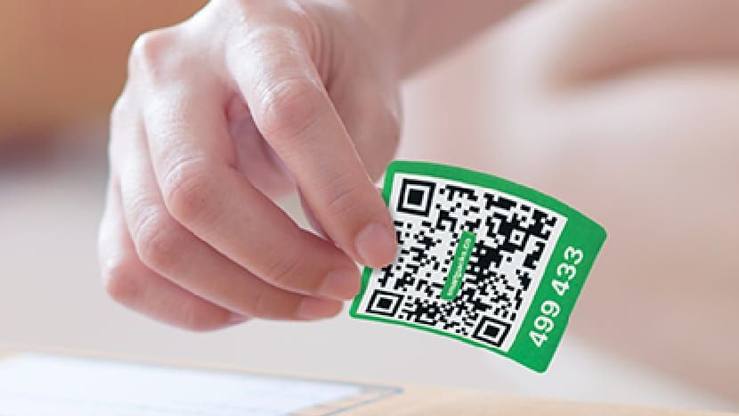
Put it on a side panel rather than the lid, so you can still scan it when boxes are stacked on the truck.
Create a location for each room at the new place, like Kitchen, Kids’ room or Garage, and choose it as you scan the box.
Snap the open box or each item and add keywords such as “kettle” or “chargers”. Then seal it.
Search a keyword to see which box and room it’s in, or scan a box to check its contents before you open it.
Set up the app before the first box is taped. Create one location for each room at the new place: Kitchen, Bedroom, Kids’ room, Office, Garage. Naming locations after where boxes are going, not where they came from, means the list you build while packing is the same list you unpack from.
If you bought the colored pack, decide what each color means and keep to it. One color per floor, one per person, or one for “open first” all work. The app shows each box’s color in your list and can sort by it, so the code works on your phone as well as on the cardboard.
Build a box, stick a label on a side panel and scan it before anything goes in. Then add items as you fill it. You don’t need to log every fork: one photo of the open box and a handful of keywords (“silverware, dish towels, kettle”) is usually enough to find things later. Give fragile or valuable things an item of their own with a clear photo.
Pack one box for the first night: chargers, medication, toiletries, a kettle, bedding. Add the keyword “first night” to everything in it, so anyone looking at your inventory can find it right away.
Before you seal a box, glance at its item list. Fixing a missing keyword is easy while the box is open and annoying once it is buried in the truck.
Movers go by what they can read, so write the destination room on the box in marker as well. The room name is for the crew; the QR label is for you.
If someone is helping you unload, a shared profile lets them see the same boxes in their own app (the person who creates the profile needs SmartPacks Pro). For a single box you are lending or leaving with someone, set it to public instead: anyone signed in to SmartPacks who scans it sees a read-only list.
Export your inventory as a PDF before the truck leaves. It is a simple record of what you packed, kept in your inbox.
Unpack by search, not by guessing: type “kettle” and walk to the right box. Boxes you won’t open for a while, like books, keepsakes or out-of-season clothes, keep their labels. Select them in the Box List and move them to a Garage or Storage location in one step, without relabeling anything. The inventory you built for the move becomes your home inventory.
New to SmartPacks? See how to use QR code labels from the first scan.
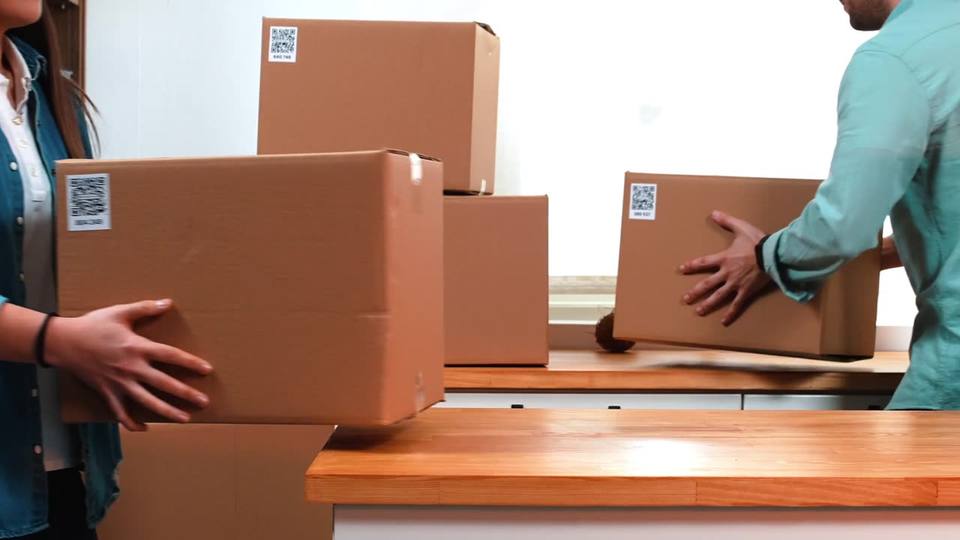
On the side. Lids get stacked on and folded open, while a side label stays visible in a stack. Use one label per box and keep packing tape off the code.
The 64 colored pack. Four colors let you code boxes by room or by person, and the app shows each box’s color in your list. A big move may need more than one pack.
Yes, with a shared profile. The person who creates it needs SmartPacks Pro and adds family members by email as Editors or Viewers. Everyone else uses the free app.
Yes. Export your inventory from Settings as a PDF or CSV file and send it to any email address.
Pick a pack of 48 white or 64 colored labels. The app is free, with no limit on boxes.