Scan a label, open the box
Point the app at a SmartPacks label to see what’s in that box. Scan an unused label and it becomes a new box, ready to fill.
A storage unit is out of sight and across town. Put a SmartPacks label on every box, record what’s in it once, and check the app before you drive over, so you know which box to pull and where it sits.
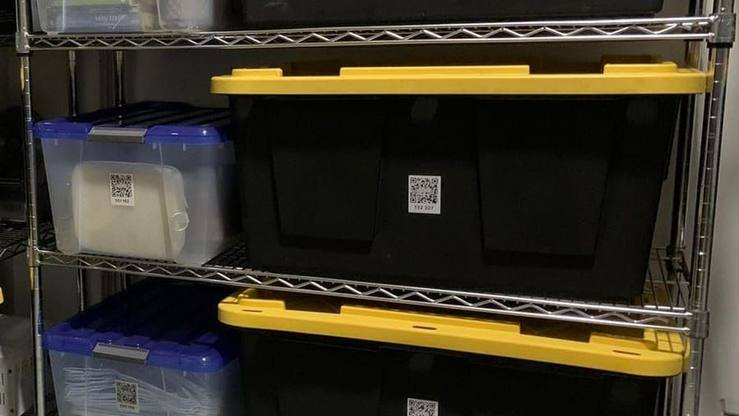
Stick a label on the side that will face the walkway, and scan it while the box is still open on your floor.
Create a location for the unit, or one per wall or shelf like “Unit, back wall”, and choose it as you scan.
Add photos and specific keywords: “tax files”, “camping stove”, “baby clothes 6–12 months”.
Search a keyword to see which box has it and where in the unit it sits, then pull just that box.
A storage unit works best when you can reach any box without moving ten others. Leave a walkway down the middle or along one side, put shelving against the back wall if the facility allows it, and keep the boxes you’ll want most often near the door.
Mirror that layout in the app. One location called “Storage unit” is fine for a small unit. For a bigger one, create a location per wall or shelf (“Unit, back wall”, “Unit, left shelf”, “Unit, by the door”) so a search tells you not just which box, but where to stand.
Boxes in storage sit for months under other boxes. Use sturdy cartons or plastic totes in a few standard sizes so they stack evenly, fill them fully so the tops don’t sag, and put heavy things in small boxes. Label a side that will face the walkway, not only the lid.
Scan each box while it is still open at home and add items as you pack. Be specific with keywords. “Papers” won’t help you next year; “tax returns” and “car title” will. Turn on AI keyword suggestions to fill in the obvious words from your photos, then add the ones only you would search for.
An inventory is only useful if it matches the unit. Each time you take something out, update its box in the app before you leave, or as soon as you get home. If a box comes home for good, move it to a home location instead of deleting it, so the box and its items stay on record.
Adding boxes on a later visit? Label, scan and fill them at home before the trip, so you are not typing in a dim corridor with one bar of signal.
Sooner or later, someone else will fetch something for you. Give them the box, not a vague description: set that box to public, and anyone signed in to the SmartPacks app can scan it to confirm they have the right one. If you share the unit with a partner or family member, a shared profile keeps one inventory you both edit (creating one needs SmartPacks Pro).
Export the inventory as a PDF or CSV now and then, and keep it with your rental paperwork. Before you renew, read through it: anything you haven’t needed in a year is a candidate to sell, donate or bring home. When you finally empty the unit, the same labels and locations carry over to wherever the boxes go next.
See every app feature that helps with storage, or how to use QR code labels from the first scan.
SmartPacks needs an internet connection to sign in and load your boxes. Signal can be weak inside a building, so look up the box you need before you go in.
Use locations. Create one for the unit, or split a large unit into walls or shelves, such as “Unit, back wall” and “Unit, left shelf”, and assign boxes as you scan them.
Yes. Set a box to public and anyone signed in to the SmartPacks app can scan it and see what’s inside, read-only. To share the whole inventory, use a shared profile; the person who creates it needs SmartPacks Pro.
Yes. Export your inventory from Settings as a PDF or CSV file and send it to any email address, including your own.
Pick a pack of 48 white or 64 colored labels. The app is free, with no limit on boxes.